How to Use Auto-Lock SL/TP
Auto-Lock SL/TP helps protect a position by requiring Stop Loss (SL) and Take Profit (TP) levels and locking them after a limited adjustment period.
Quick overview
Position opens → 5 minutes to set missing SL/TP → System auto-sets missing levels → 5 minutes to adjust → SL/TP locks
The feature has two separate jobs:
- Auto-set: Adds SL or TP when a required level is still missing.
- Auto-lock: Prevents a level from being modified or removed after its adjustment countdown ends.
SL and TP are managed independently, so they may show different countdowns and lock at different times.
How to enable Auto-Lock SL/TP
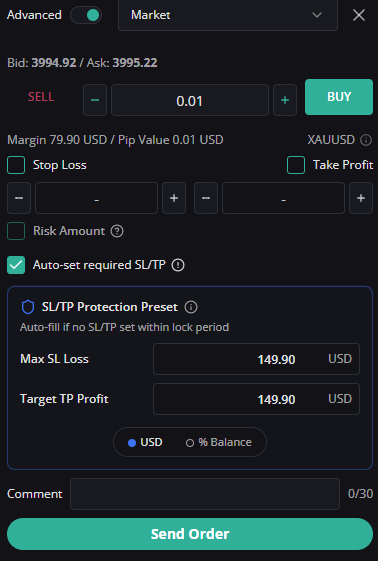
1. Open the order panel and expand Advanced.
2. Enable Auto-set required SL/TP.
3. Under SL/TP Protection Preset, choose how the protection levels are calculated:
- USD: Enter a fixed maximum SL loss and target TP profit.
- % Balance: Enter the SL loss and TP profit as percentages of the account balance.
4. Review the order details, then place the market or pending order.
Timeline after the position opens
Step 1: Initial setup period — first 5 minutes
- You can add, modify, or remove SL and TP.
- The system keeps the valid levels you selected.
Step 2: Automatic setup of missing levels
- After the initial five minutes, the system checks whether SL or TP is missing.
- Only missing levels are calculated from the saved protection preset.
Step 3: Adjustment period — another 5 minutes
- Each newly set SL or TP receives a five-minute adjustment countdown.
- You can modify or remove an unlocked level during its countdown.
Step 4: Locked state
- When a level's countdown ends, it becomes locked for the position.
- A locked level cannot be modified, removed, or dragged on the chart.
- An unlocked level remains editable even if the other level is already locked.
- The Open Positions section displays the countdown and current state of each level.
Common situations
Both SL and TP are set when the position opens
- The system does not replace the SL or TP levels you selected.
- Both levels enter a five-minute adjustment period.
- You can modify or remove either level during this period.
- At the end of the adjustment period, both levels are locked.
Only SL is set
- Your SL remains active and starts its adjustment countdown.
- You can add TP manually during the initial five-minute period.
- If TP is still missing when the initial period ends, the system attempts to calculate and set TP from the Target TP Profit preset.
- The automatically added TP receives its own five-minute adjustment period before it is locked.
Only TP is set
- Your TP remains active and starts its adjustment countdown.
- You can add SL manually during the initial five-minute period.
- If SL is still missing when the initial period ends, the system attempts to calculate and set SL from the Max SL Loss preset.
- The automatically added SL receives its own five-minute adjustment period before it is locked.
Neither SL nor TP is set
- You have five minutes after the position opens to add SL and TP manually.
- If both levels are still missing when this period ends, the system attempts to set both levels from the saved protection preset.
- After automatic setup succeeds, the new levels can be adjusted for five minutes before they are locked.
The second level is added before the first level locks
- When the position becomes fully protected with both SL and TP, the system starts a new five-minute adjustment window for all levels that are not already locked.
- This gives you time to review the complete SL/TP setup before it becomes final.
One level is added after the other level has already locked
- The locked level remains unchanged and cannot be reopened for editing.
- Only the newly added level receives a five-minute adjustment period.
- SL and TP may therefore show different countdowns or lock states.
What happens when both SL and TP are locked?
When both levels are locked:
- You cannot close the full position manually through WebTrade.
- You cannot partially close the position through WebTrade.
- The position remains open until SL or TP is triggered, unless a system protection action closes it.
Trader's Guard, the mandatory Daily Drawdown 10% protection, administrative protection, stop-out, and normal MT5 SL/TP execution can still close the position when required.
Special cases
The calculated TP level has already been crossed
- The system does not place a TP at an invalid or already-crossed price.
- TP automatic setup is skipped, while SL protection is still applied when possible.
- Add a valid TP manually if the TP field remains available for editing.
The calculated SL level has already been crossed
- The requested maximum-loss boundary has already been exceeded, so placing that SL would no longer provide the intended protection.
- The system requests that the position be closed instead of applying an invalid SL.
Automatic setup is temporarily unavailable or fails
- The status may show that SL/TP setup is pending while the system waits for sufficient price or account data.
- Temporary conditions are retried automatically.
- If automatic setup fails, WebTrade displays a failure status. Set the missing level manually as soon as the interface allows it.
Auto-set required SL/TP is disabled
- The protection preset and automatic lock workflow do not apply to that order.
- You remain responsible for adding and managing SL and TP manually.
Auto-Lock SL/TP compared with Risk Amount
- Risk Amount calculates an estimated Volume before you place the order, using your SL distance and selected risk.
- Auto-Lock SL/TP manages SL and TP after the position opens and prevents later changes when the countdown ends.
You can use both features together: first use Risk Amount to size the order, then use Auto-Lock SL/TP to enforce the protection levels.
Important notes
- Auto-Lock SL/TP runs on the backend. You do not need to keep the browser or WebTrade open for the countdown and protection to continue.
- Reopen WebTrade to review the latest SL/TP countdown and lock status.
- The preset is saved with the order. Changing the preset later does not change protection values for an already-open position.
- Automatic prices depend on the symbol, position volume, market price, minimum stop distance, and the selected USD or % Balance preset.