How to Enable Two-Factor Authentication (2FA)
Two-Factor Authentication (2FA) adds a vital secondary defense layer to your account. When enabled, signing in, altering security credentials, and approving withdrawal requests will require a time-based one-time code (TOTP) from your mobile authenticator app, preventing unauthorized access even if your password is compromised.
Follow these steps to activate Google Authenticator 2FA on your Client Portal account:
1. Log in to your GreatBless Client Portal account.
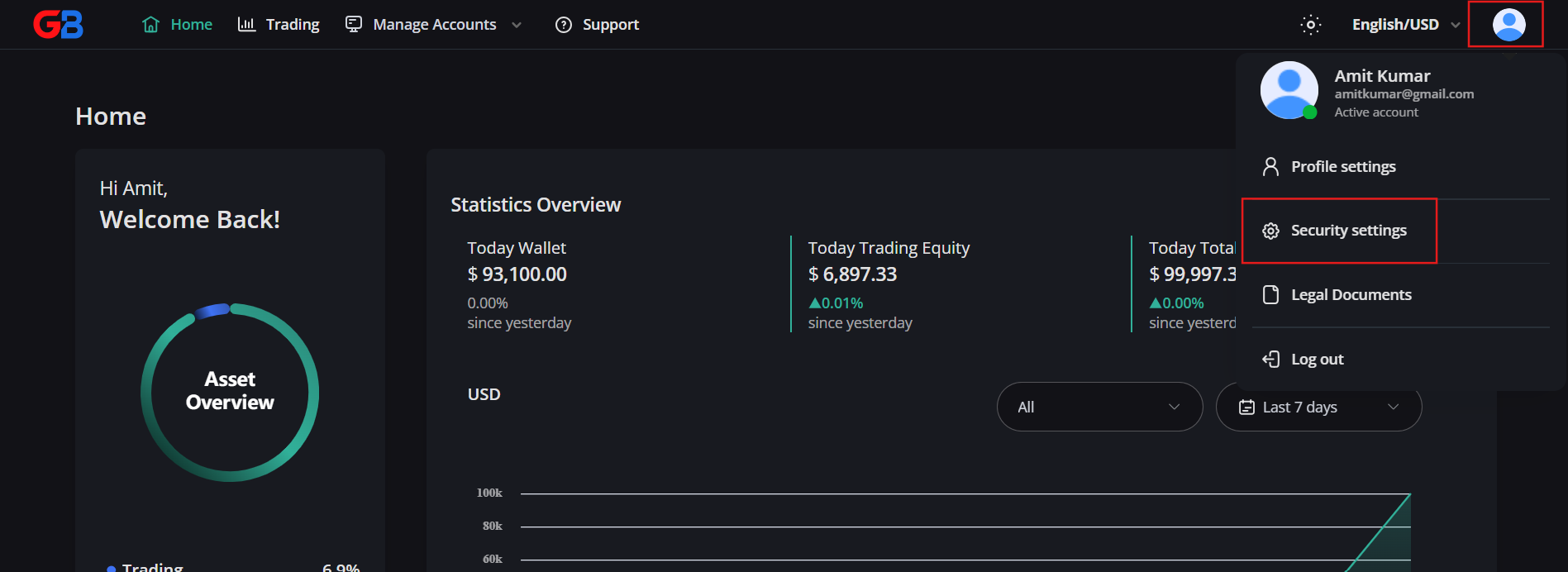
2. Click on the user profile icon in the top header, then select [Security settings].
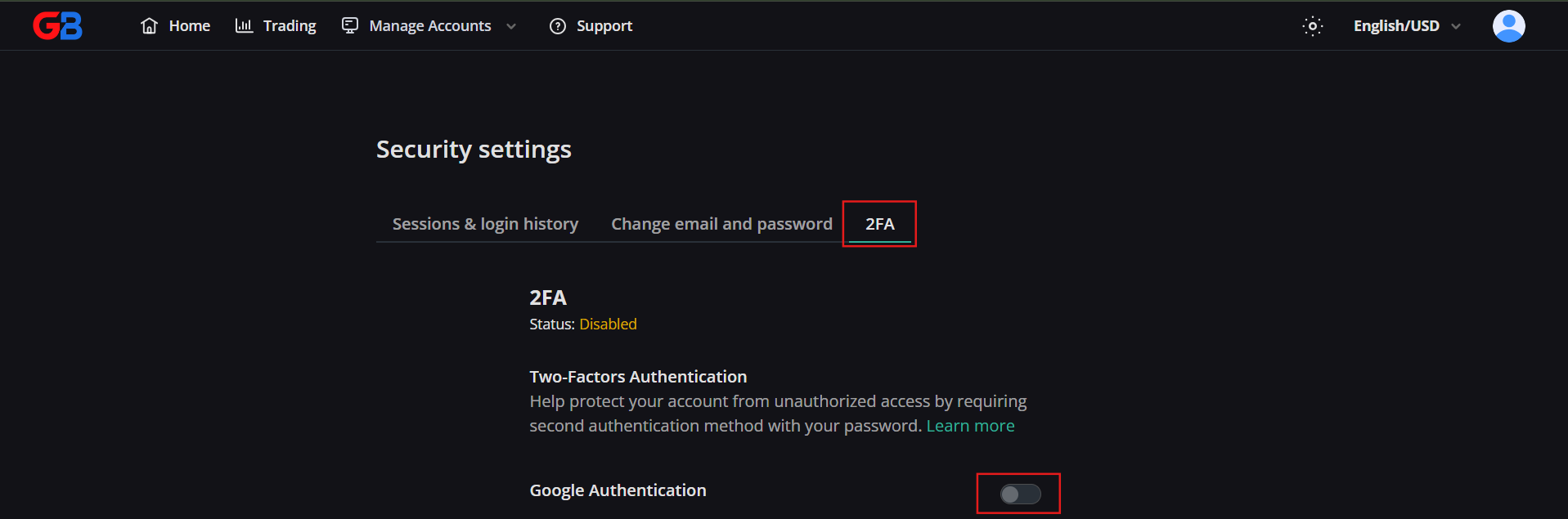
3. Select the [2FA] tab, then toggle on [Google Authentication].
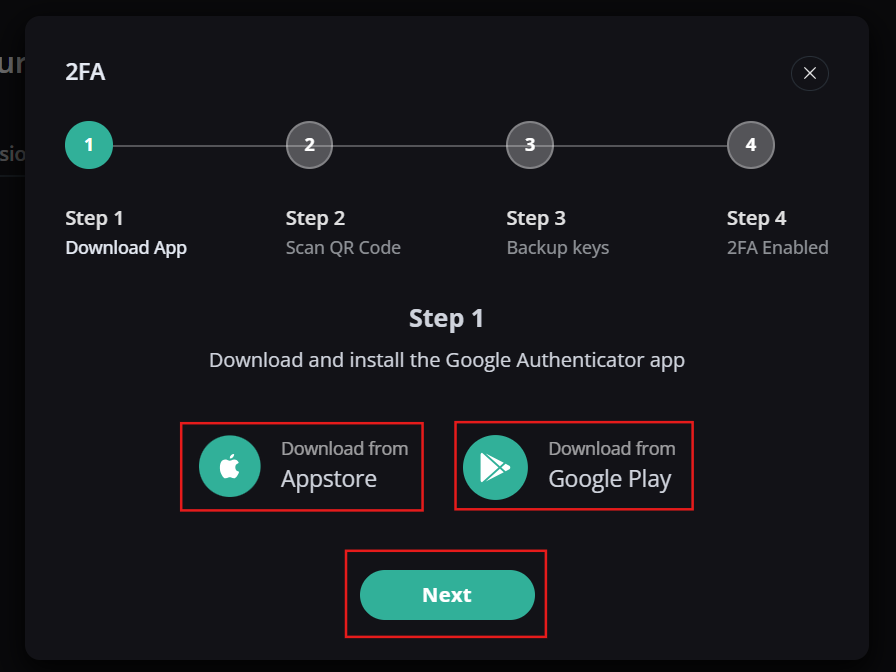
4. Download and install Google Authenticator (or any compatible TOTP app like Microsoft Authenticator or 1Password) from the iOS App Store or Google Play Store. Click [Next].
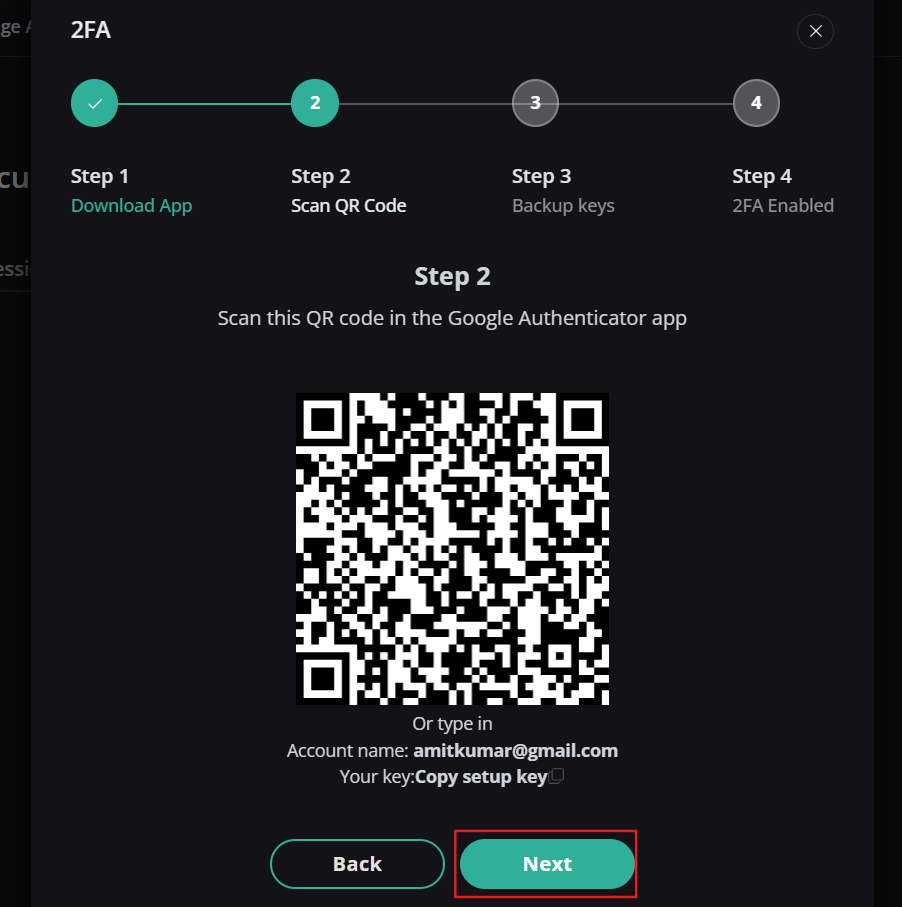
5. Open the authenticator app on your mobile device, scan the displayed QR code (or manually type the alphanumeric setup key), then click [Next].
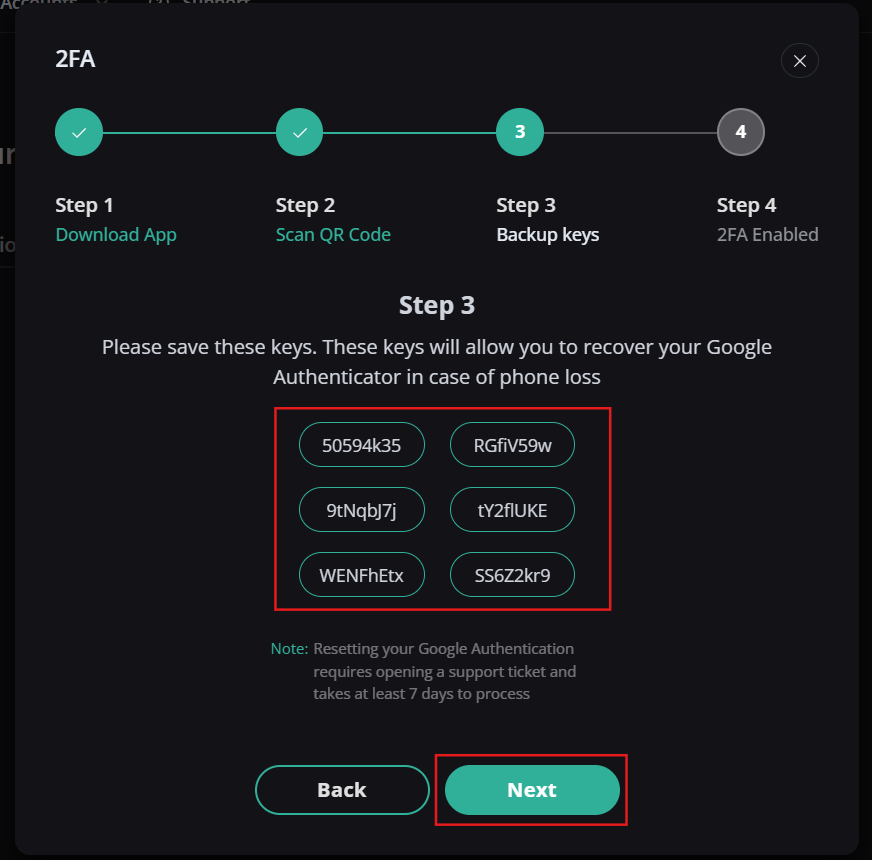
6. Store your backup recovery key safely: Write down the 16-character backup key and store it offline in a secure location. If you lose or damage your mobile device, this key is required to restore access. Click [Next].
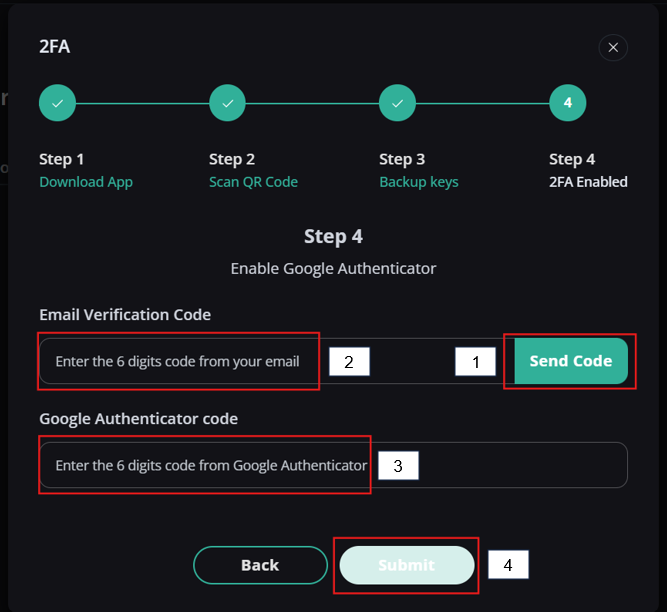
7. Finalize activation: Click [Send Code] to receive a confirmation code via your registered email. Enter the email code along with the current 6-digit code from your authenticator app, then click [Submit].