Troubleshooting Connection & Chart Issues
If you experience issues loading charts, frozen price feeds, or connection errors on the WebTrade platform, please follow these troubleshooting steps:
1. Perform a Hard Refresh
Outdated web assets cached in your browser can cause issues. Force your browser to load the latest files:- Windows (Chrome/Edge/Firefox): Press
Ctrl + F5(orCtrl + Shift + R). - Mac (Safari/Chrome): Press
Cmd + Shift + R(or holdShiftand click the Reload button).
2. Check Ad-Blockers & Extension Interferences
Ad-blocking extensions (like AdBlock, uBlock Origin) or strict privacy settings in your browser can block WebSocket connections required for live feeds.- Try whitelisting
greatbless.comin your ad-blocker or disabling it temporarily.
3. Change Your DNS Servers
If your local Internet Service Provider (ISP) blocks connection packets to our backend servers, switch to Google's public DNS servers:- Primary DNS:
8.8.8.8 - Secondary DNS:
8.8.4.4
How to change on Windows 11 (via Settings app):
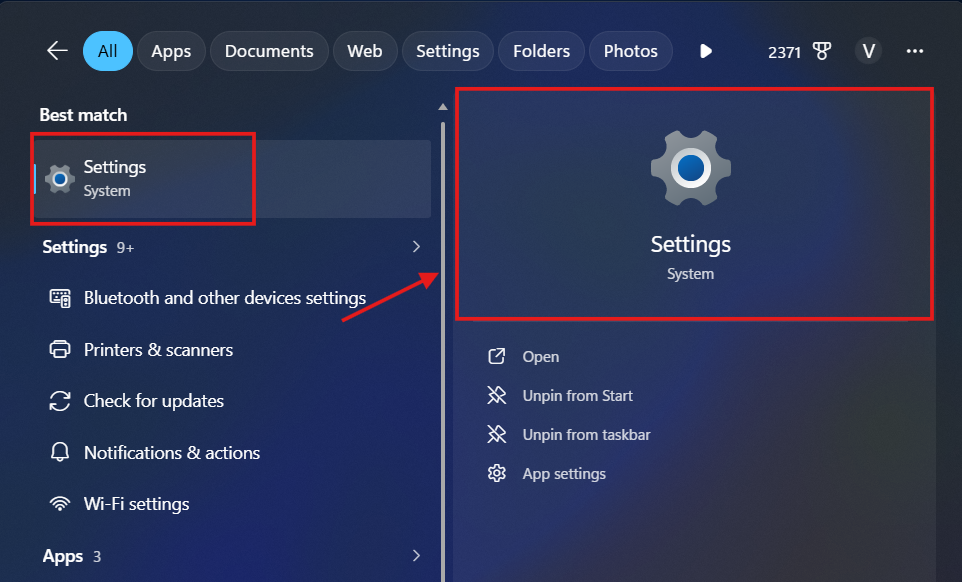
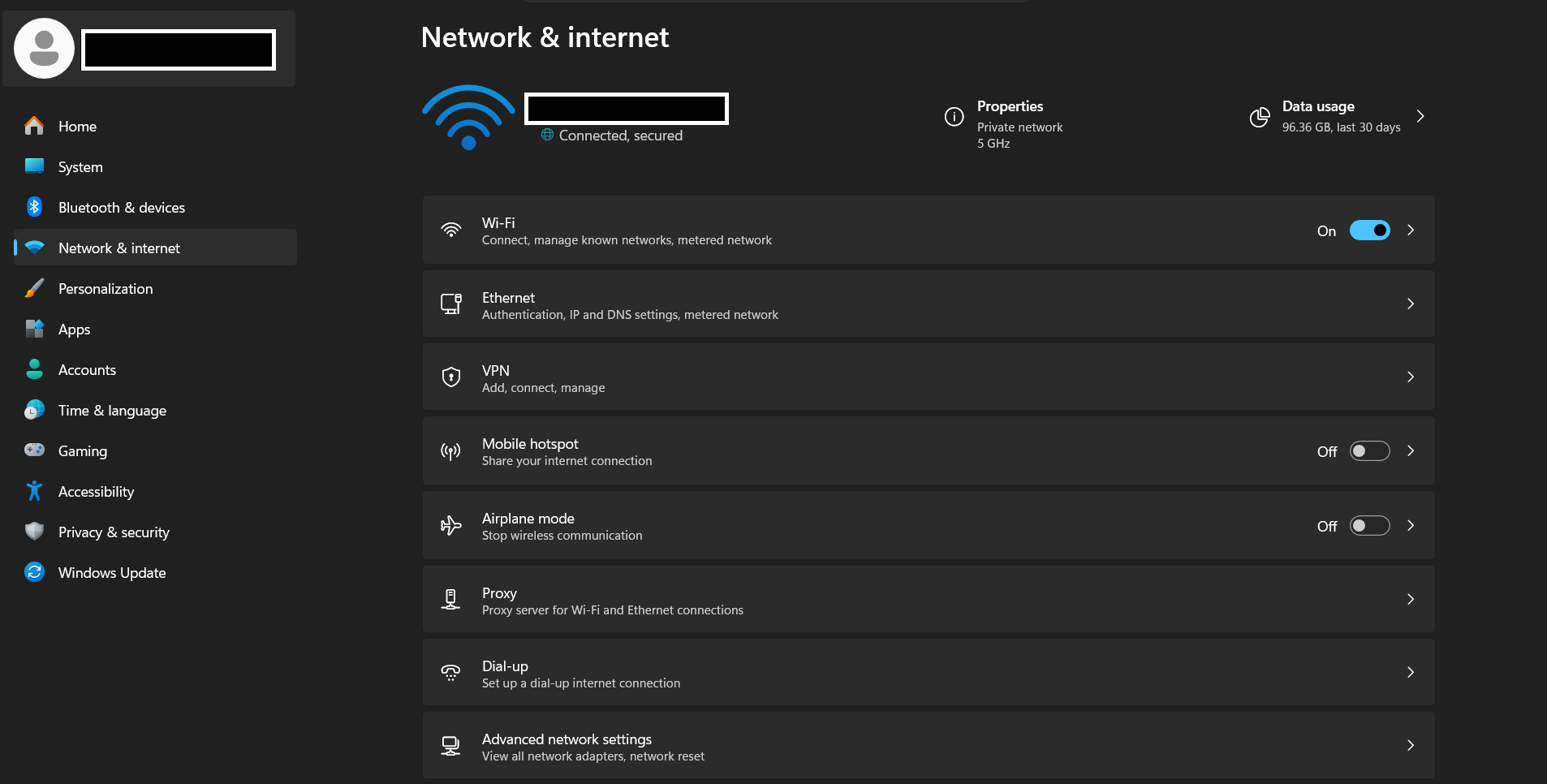
1. Open Settings and select Network & internet.
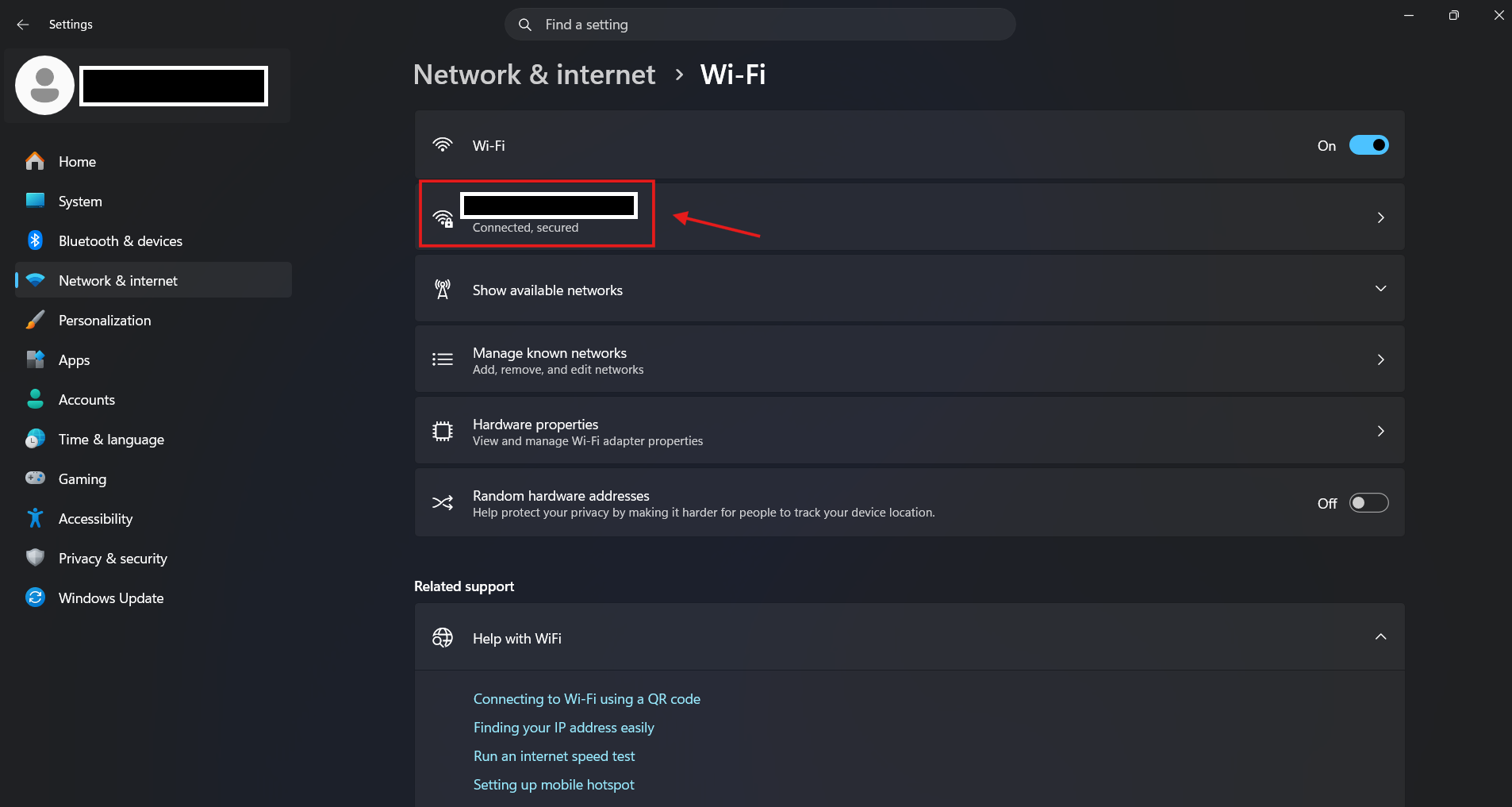
2. Select the Wi-Fi network you are currently connected to.
3. Next to DNS server assignment, click Edit.
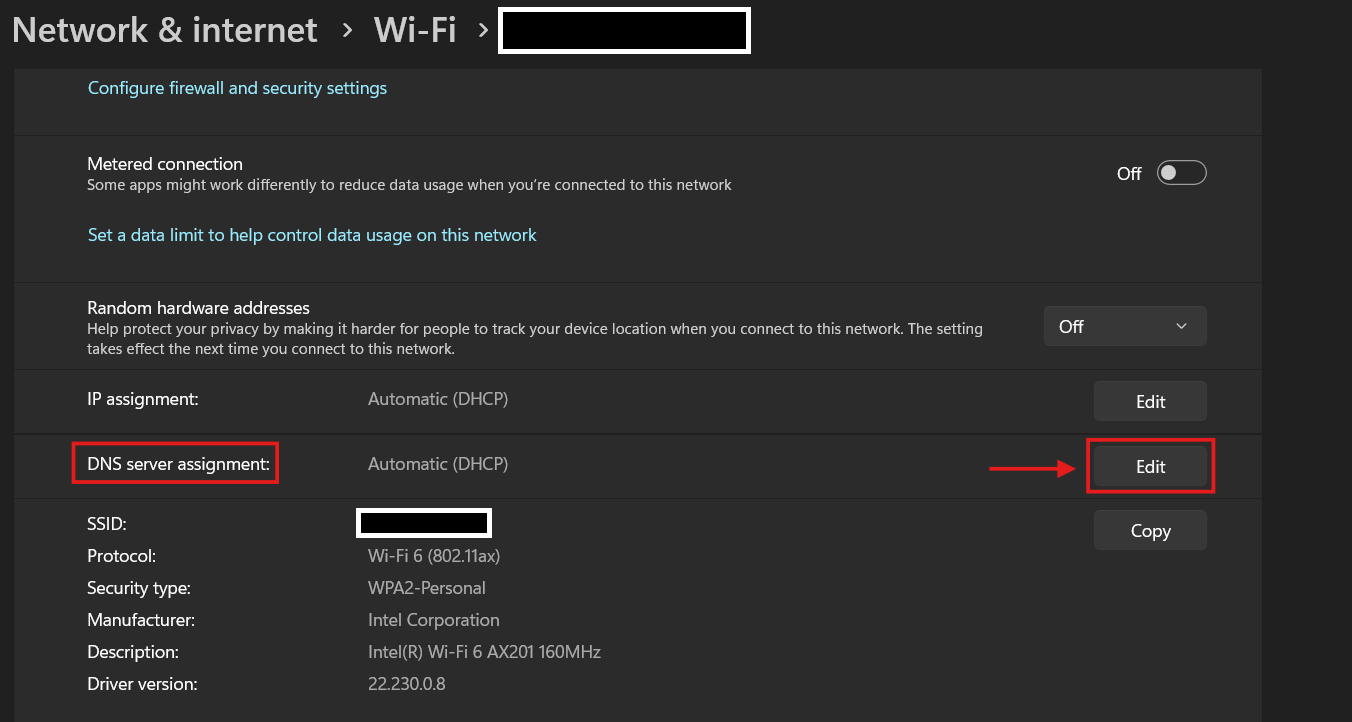
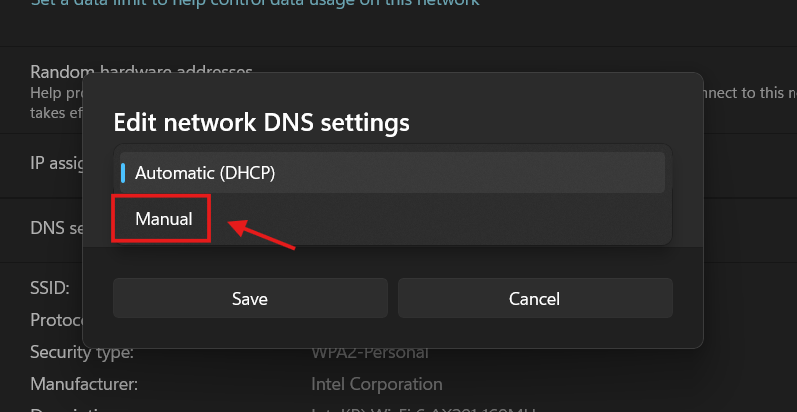
4. Change the setting from Automatic (DHCP) to Manual.
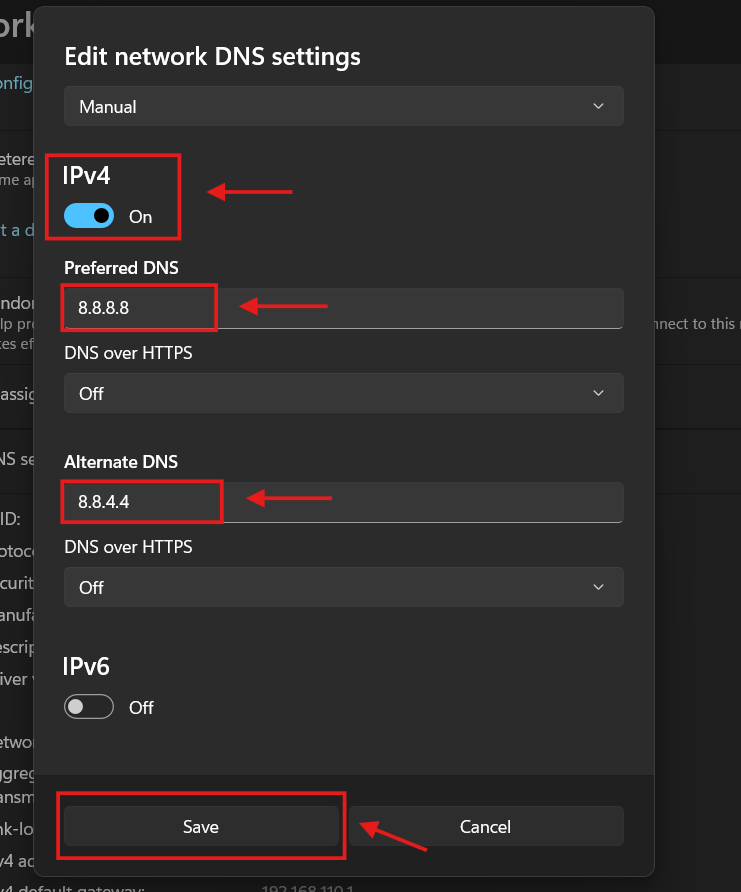
5. Toggle on IPv4, then enter 8.8.8.8 for Preferred DNS and 8.8.4.4 for Alternate DNS, then click [Save].
How to change DNS using Control Panel (Applies to all Windows versions from 7 to 11):
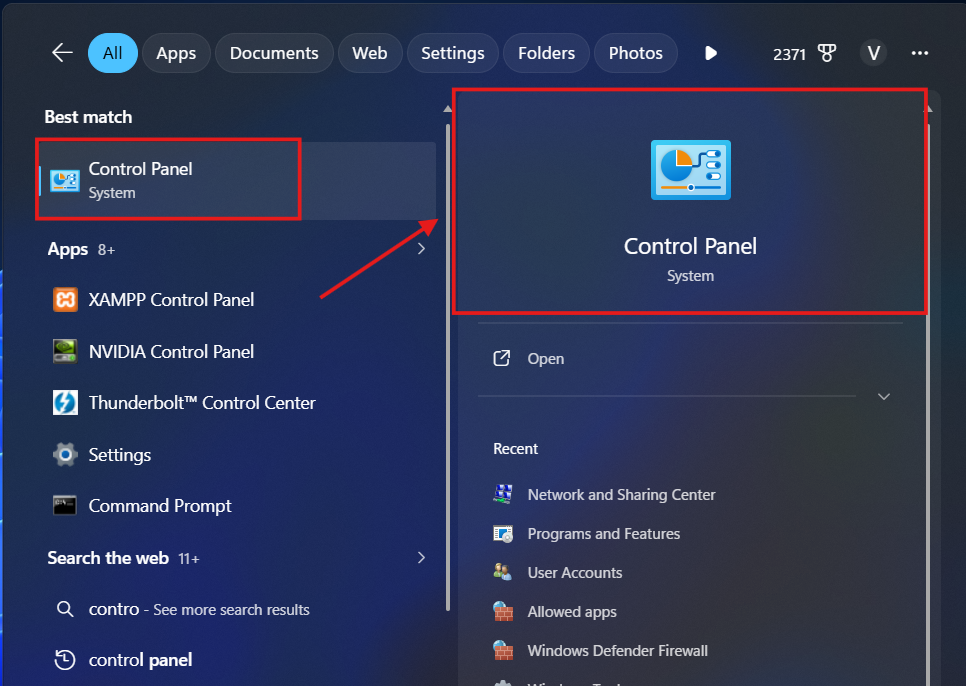
1. Open [Control Panel] by typing "Control Panel" into the Start menu search bar and pressing Enter.
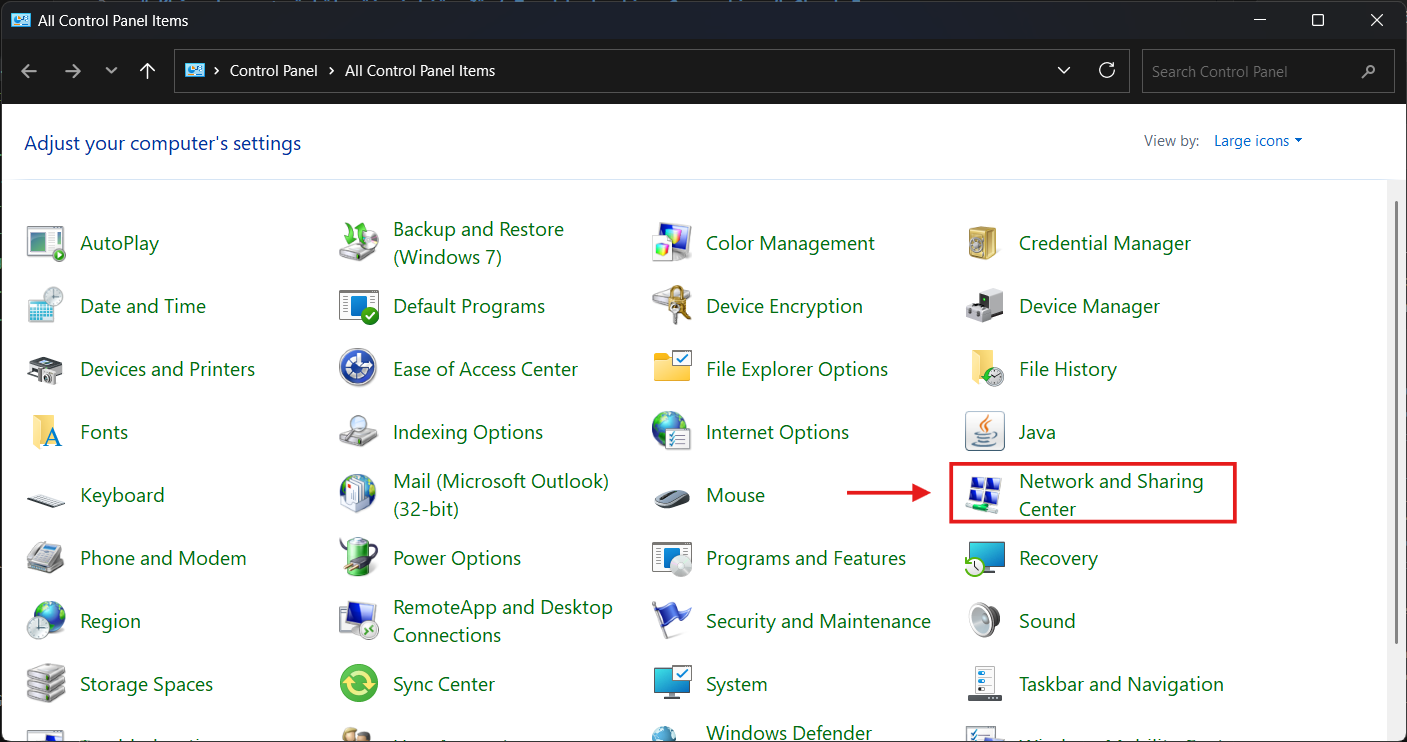
2. Select [Network and Internet], then choose [Network and Sharing Center].
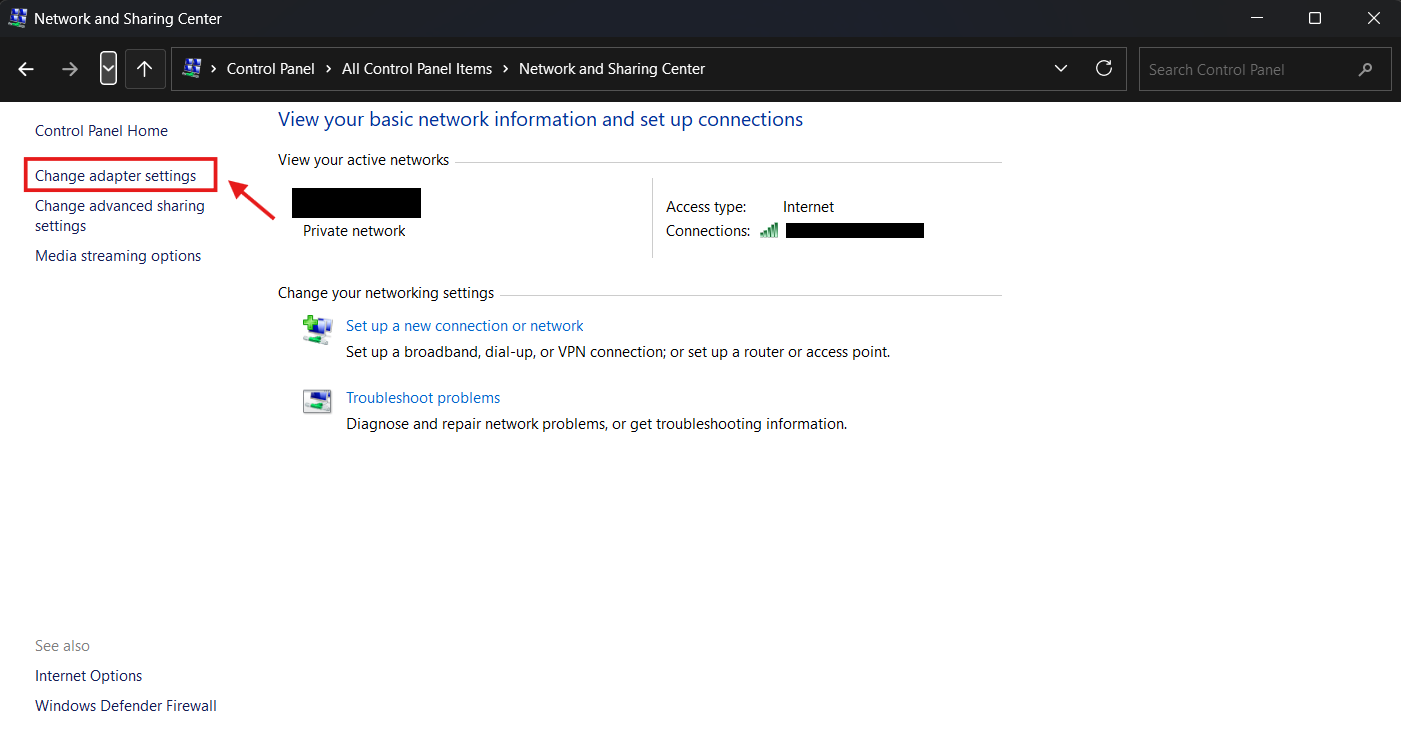
3. On the left menu, click on [Change adapter settings].
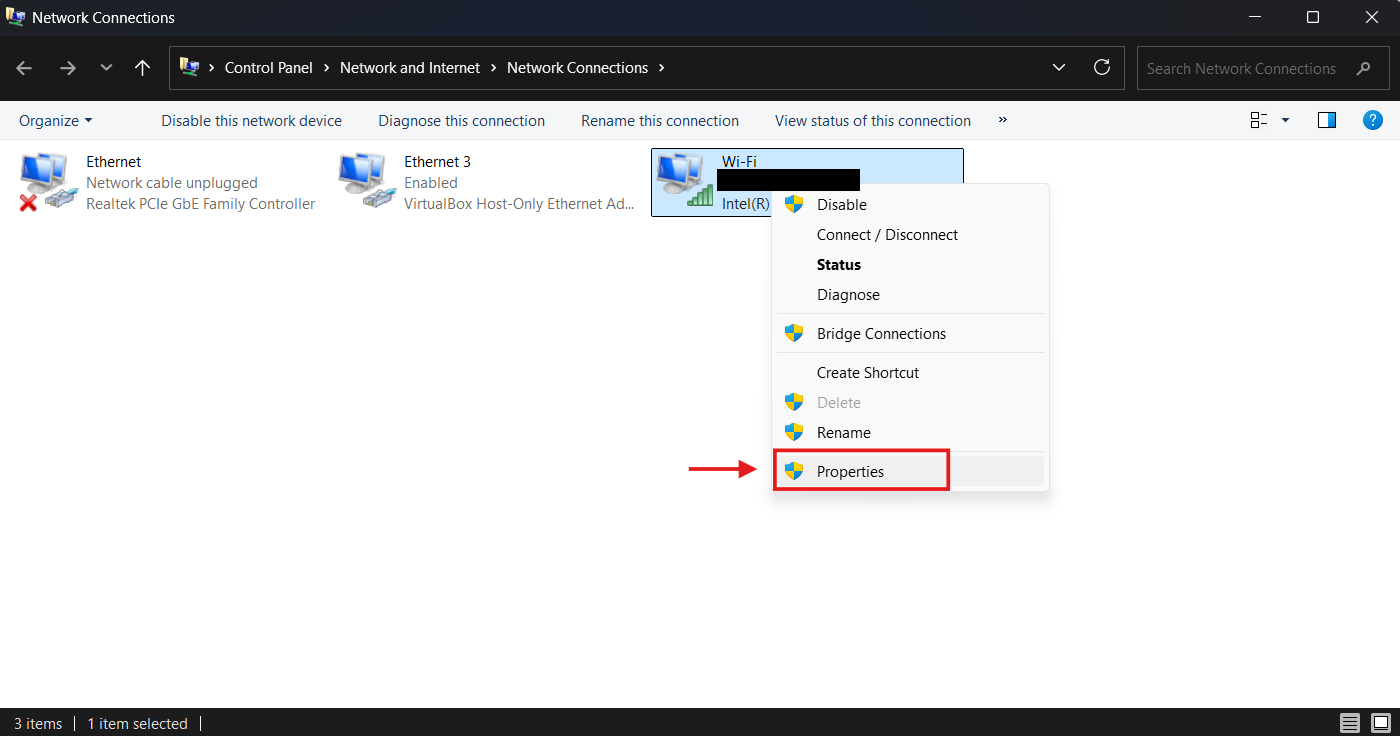
4. Right-click on your active network connection (Wi-Fi or Ethernet) and select [Properties].
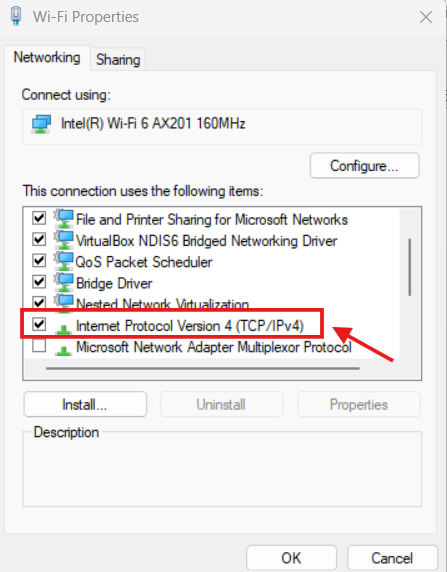
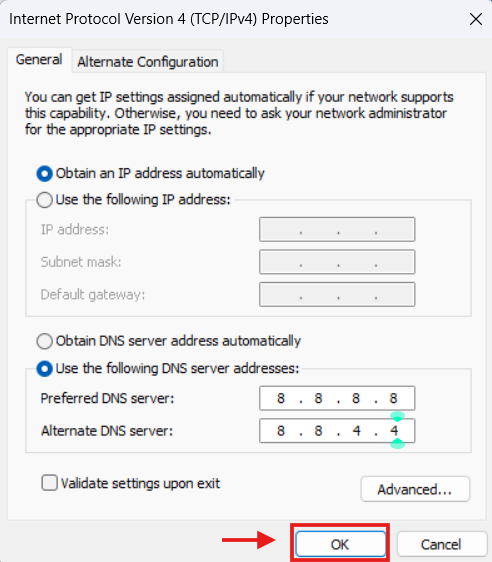
5. In the list, find and double-click on [Internet Protocol Version 4 (TCP/IPv4)].
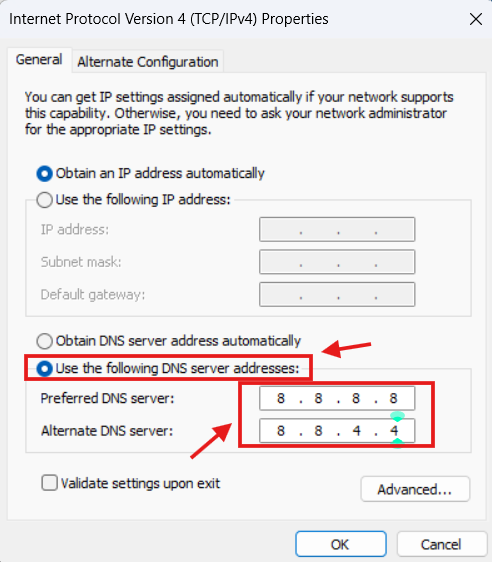
6. Select the [Use the following DNS server addresses] option and enter the following information:
Preferred DNS server: 8.8.8.8
Alternate DNS server: 8.8.4.4
7. Click [OK] on all windows to save the settings.
How to change on macOS:
1. Open the Apple menu and select [System Settings] (or [System Preferences]).
2. Click on [Network] in the sidebar, then select your active connection (e.g., Wi-Fi).
3. Click on [Details...] (or [Advanced...]).
4. Select the [DNS] tab.
5. Click the + button under DNS Servers and add 8.8.8.8 and 8.8.4.4.
6. Click [OK], then [Apply] to save your changes.
⚠️ Important Connectivity & Latency Disclaimer (Order Execution Policy Section 5.4)
[!WARNING] Internet Latency and Client-Side Connectivity Risks: Trading financial contracts for difference (CFDs) online involves inherent risks associated with telecommunication systems, internet service providers (ISPs), local hardware performance, and public network routing. * Server-Side Stop Loss Protection: GreatBless strongly recommends always attaching a hard Stop Loss (SL) to your open positions. Server-side stop orders reside directly on the MT5 execution servers and will execute according to market conditions even if your device loses internet connectivity, your browser closes, or your power fails. * Limitation of Liability: In accordance with Section 9 of the Client Agreement and Section 5.4 of the Order Execution Policy, GreatBless is not liable for financial losses, missed trading opportunities, or adverse price movements resulting from delays, signal disruptions, device crashes, or connection failures on the client's local network. Traders are advised to maintain secondary or mobile data connections as a backup.