Disabling a Commitment in a Scenario
You cannot disable or cancel a commitment while its Scenario is within an active commitment period (7 to 90 days). A commitment can only be disabled if the Scenario has not yet been run or after its active commitment duration has officially expired (Client Agreement §30.4).
Disable a commitment in a Scenario that has not been run
In this example, you will disable the Maximum daily orders commitment in Scenario_1, which has not yet been run.
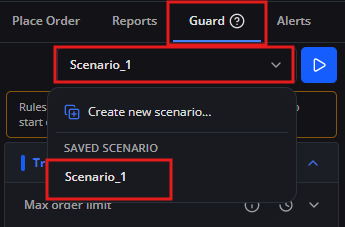
1. Open Trader's Guard and select [Scenario_1]. Make sure this Scenario has not been run.
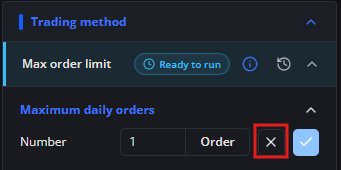
2. Find the [Maximum daily orders] commitment, then click the [X] icon.
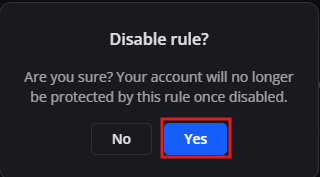
3. When the confirmation dialog appears, click [Yes].
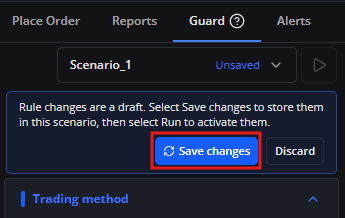
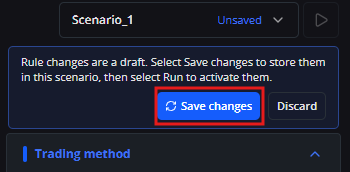
4. Click [Save changes] to save the update to the Scenario. The commitment is not removed from the Scenario until you complete this step.
5. Review Scenario_1 and confirm that the Maximum daily orders commitment has been removed.
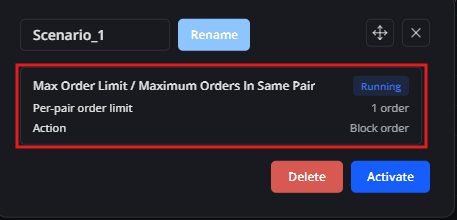
Disable a commitment in an expired Scenario
In this example, you will disable the Maximum daily orders commitment in Scenario_1 after its selected commitment period has expired.
1. Open Trader's Guard and select [Scenario_1]. Make sure its selected active period has expired.
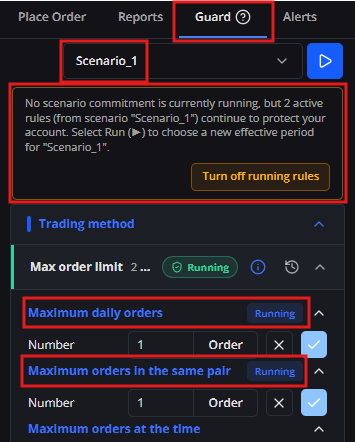
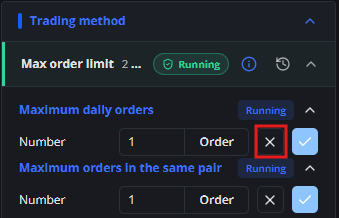
2. Find the [Maximum daily orders] commitment, then click the [X] icon.
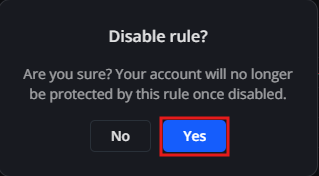
3. When the confirmation dialog appears, click [Yes].
4. Click [Save changes] to save the update to the Scenario.
5. Review Scenario_1 and confirm that the Maximum daily orders commitment has been removed.