Checking Guard Violations
If your account has had orders blocked, positions closed, or has been temporarily locked from trading, it may be due to an automated Trader's Guard commitment violation. Follow the steps below to inspect the exact violation log:
1. Log in to your GreatBless account and go to the Trading dashboard.
2. From the list of trading accounts, choose the account you wish to inspect.
3. In the upper-right corner of the screen, check the [Guard] indicator. If you see a blinking orange border around [Guard], an unread Trader’s Guard violation has occurred.
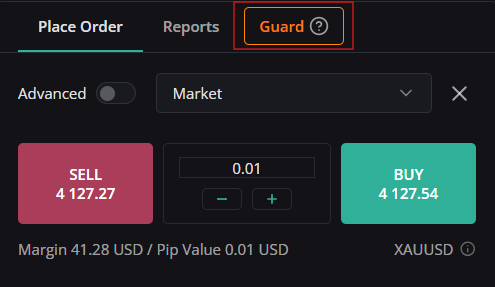
4. Click the [Guard] indicator to open the Trader’s Guard panel. The rule category marked with a blinking orange border identifies the violated commitment.
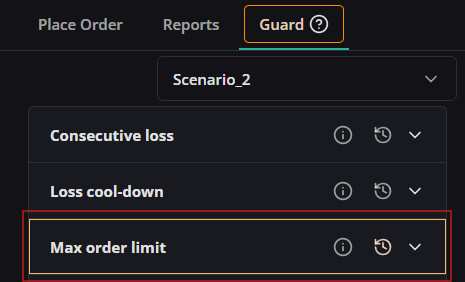
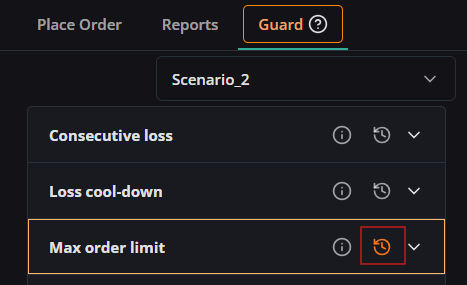
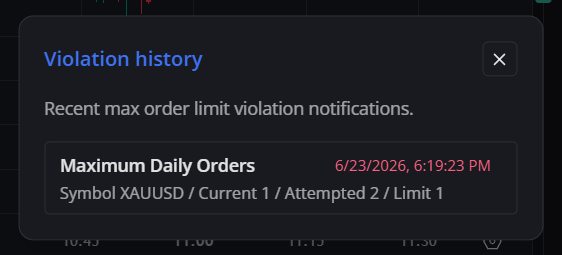
5. Click the [History] icon next to the violated category to inspect the detailed timestamped log.
Unread violation highlight system
Trader's Guard uses visual cues to ensure traders are immediately aware of risk breaches:
- Blinking Guard Tab: If the account has new unread violations, the [Guard] tab on the WebTrade dashboard blinks with an orange outline.
- Orange Borders on Categories: Inside the Trader's Guard panel, any rule category with unread violations displays an orange border, and its [History] icon may blink.
- Pinpointing the Violated Rule: For categories with multiple sub-rules (such as Max Order Limit or Volume Management), the specific parameter row that triggered the violation receives an orange border.
- Clearing the Highlight: Orange highlights and blinking indicators will not clear by simply switching tabs or collapsing accordions. To acknowledge the violation and clear the visual alert, click the [History] icon of the highlighted category to inspect the log. This marks the violation event as acknowledged.