Adding a Commitment to a Scenario
A new Scenario must contain at least one commitment before it can be applied. Review each commitment value and action carefully before applying. Under Client Agreement §30.4, once applied to a live account, the Scenario is locked for a minimum duration (7 to 90 days) and cannot be relaxed or canceled during the active period.
You can add commitments to a Scenario on both Live Accounts and Demo Accounts.
1. Log in to your GreatBless account. Go to Trading, then select the account where you want to set up Trader's Guard.
2. Click the [Guard] icon to open Trader's Guard.
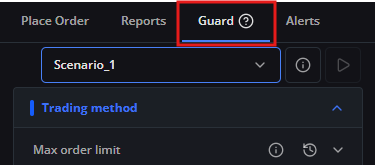
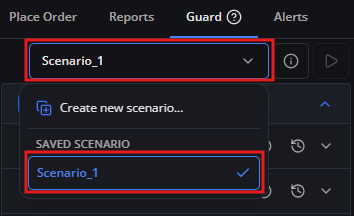
3. From the scenario selector, select the Scenario where you want to add a commitment. For example, select [Scenario_1].
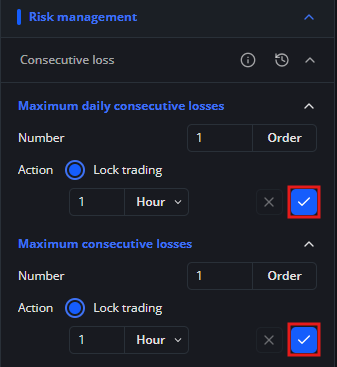
4. From the list of available commitments, open the commitment you want to add to the Scenario. See Available Commitments to understand each risk rule.
5. Enter the required commitment values and select the Action Method that will be applied if the commitment is violated. See Violation Action Types to choose the appropriate action.
6. Click Confirm [✓], then click [Yes] in the confirmation dialog to confirm the commitment configuration.
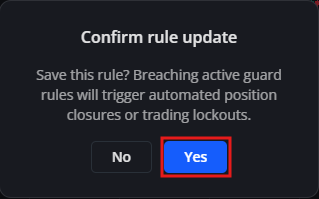
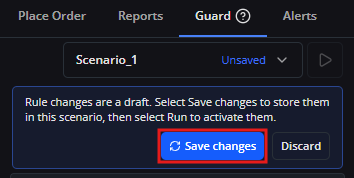
7. After confirming the rule, the system will ask you to save the changes. Click [Save changes] to save the commitment to the selected Scenario. The commitment is not saved to the Scenario until you complete this step.
8. Confirm that the new commitment is displayed under the selected Scenario. Repeat the steps above to add more commitments if needed.
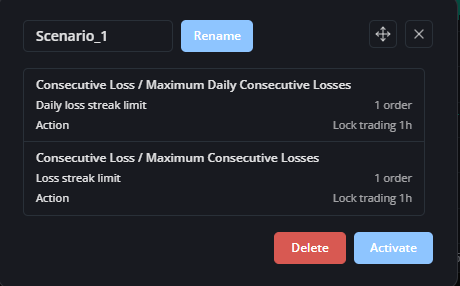
After the Scenario contains at least one commitment, continue to Applying a Saved Scenario.