How to Change Your Email and Password
Maintaining strong, unique passwords and keeping your primary email address up to date are fundamental security practices. Follow this guide to update your portal credentials:
1. Update registered email address
1. Log in to your GreatBless Client Portal account.
2. Click on your user profile icon in the top header, then select [Security settings].
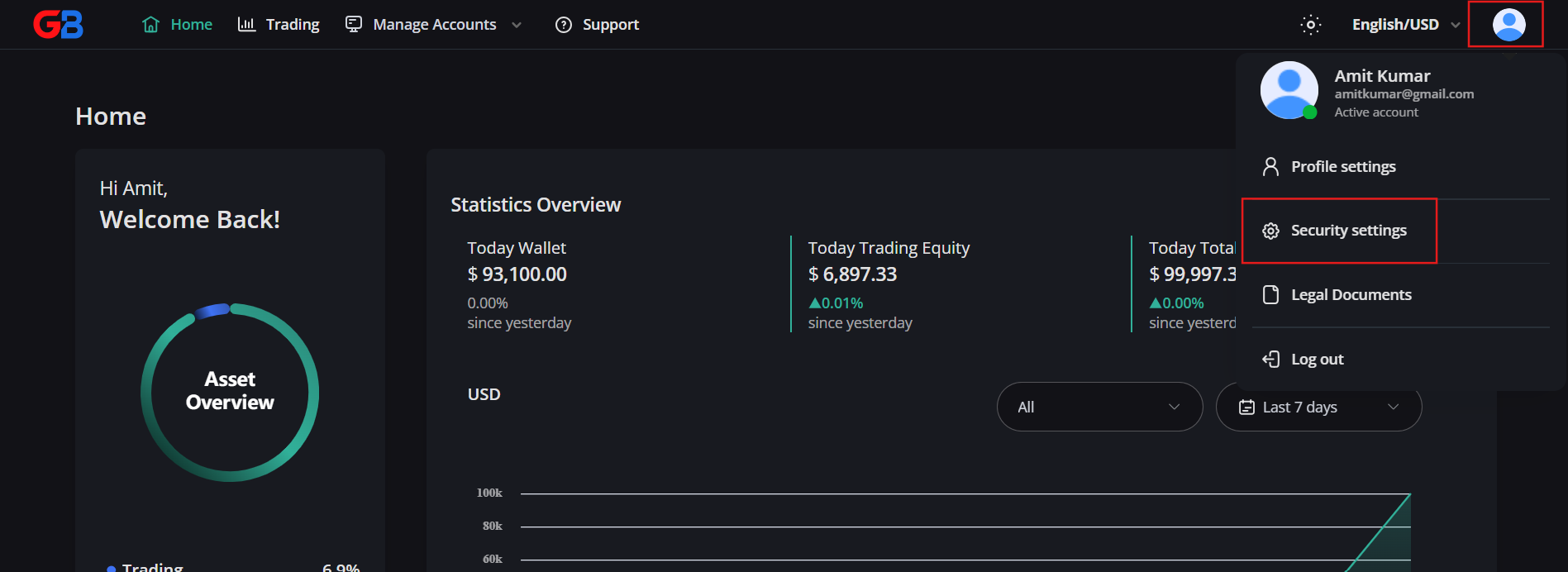
3. Select the [Change email and password] tab.
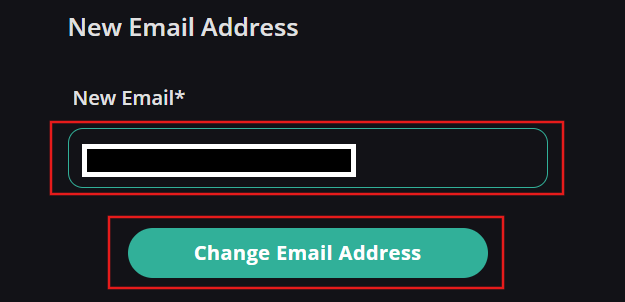
4. Enter your new desired email address, then click [Change Email Address].
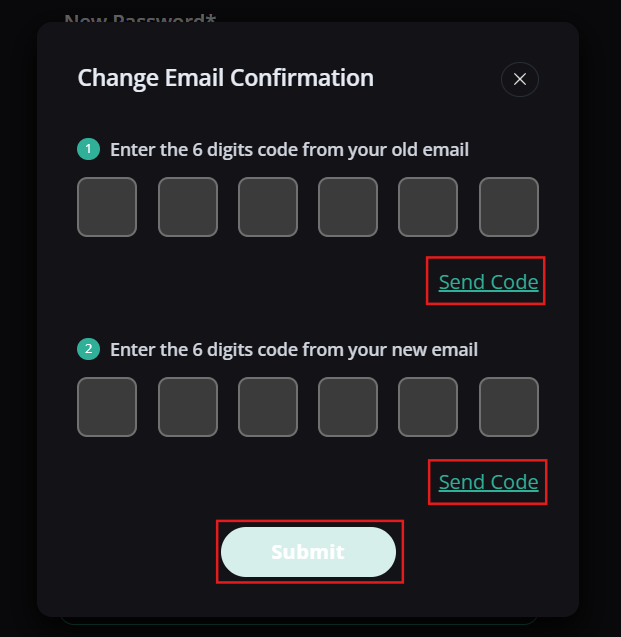
5. Click [Send Code] to dispatch verification codes to both your current email and your new email. Enter both 6-digit confirmation codes, then click [Submit].
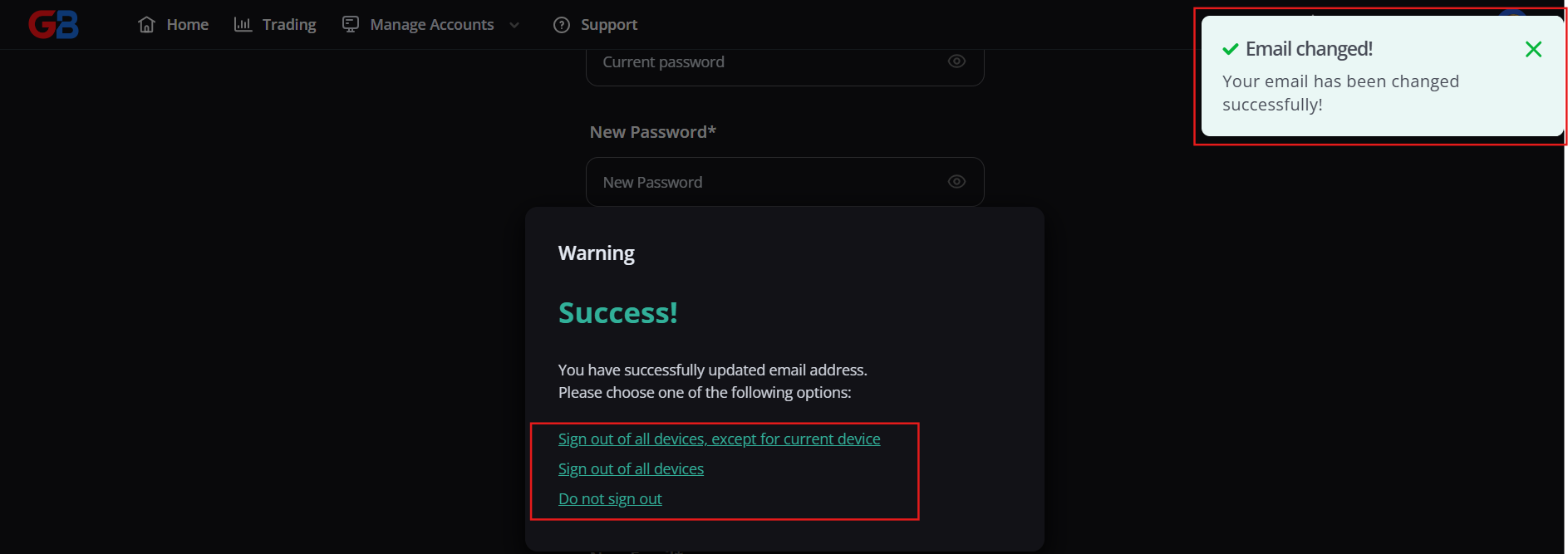
6. Upon successful verification, select your session handling preference:
- Sign out of all devices, except current device: Revokes all external tokens while keeping your current window active.
- Sign out of all devices: Revokes all active sessions, requiring a fresh login.
- Do not sign out: Retains existing device logins.
2. Update account password
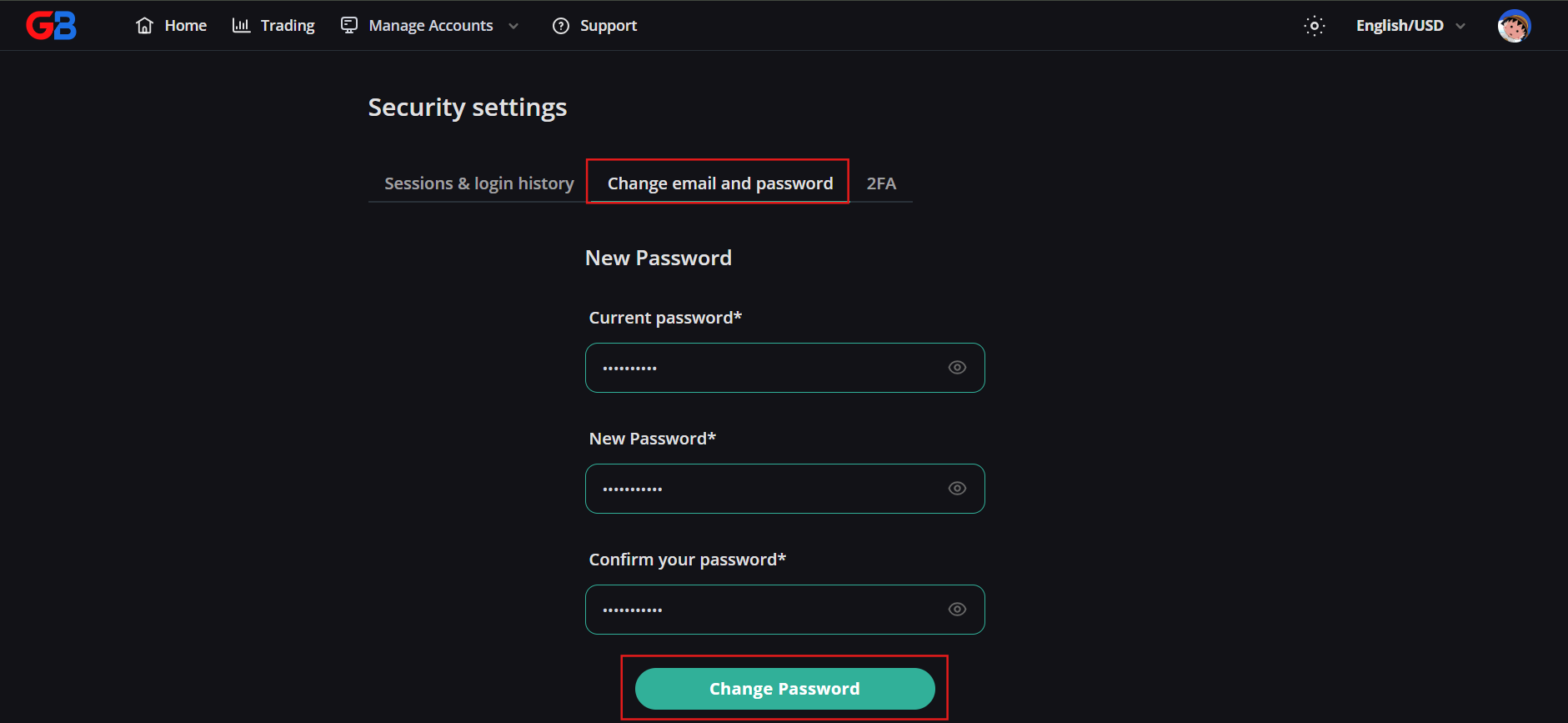
1. Navigate to [Security settings] > [Change email and password].
2. Scroll down to the New Password section.
3. Enter your current password, type your new strong password, and re-type it to confirm. Click [Change Password].
4. Once the password is successfully updated, active sessions are securely invalidated and you are redirected to sign in with your new credentials.