Trader's Guard and Scenarios in Backtest
Trader's Guard is not switched off during a simulation. Rules accepted into the run are enforced inside Backtest - measured against the demo account and the replay clock, not your live balance or the wall clock. This is what lets you rehearse the discipline, not just the entries: you can watch a rule lock the account in the middle of a losing streak that already happened.
The carry-over question
When you enter Backtest with the Trader's Guard tab open - or open the Guard tab while a simulation is already running - a dialog asks:
Apply live trading rules? N rule groups applied on live trading will be enforced in this Backtest run, measured against the demo account and the replay clock.
- Yes : your active live rules are enforced in the run, and your live Scenarios are copied into the Backtest sandbox so you can run them.
- No : the run starts with an empty rule set. Scenarios you create inside Backtest still work; the live ones simply do not appear.
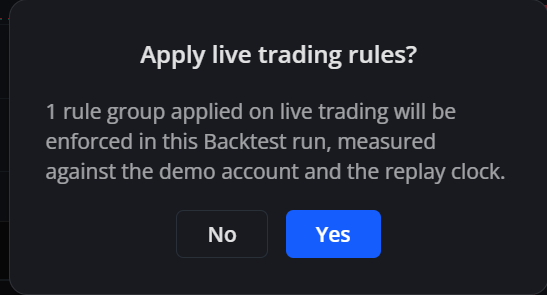
The question is asked once per Backtest session. Closing and reopening the Guard tab will not ask again, because a second answer would contradict the rules the run is already being judged by. Either answer is local to the simulation: nothing is added, changed, or removed on your live account.
If your carried-over live rules use fixed USD amounts rather than percentages (for example, a Max Daily Loss of 500 USD designed for a 50,000 USD live account), that same 500 USD limit is enforced against your demo deposit. If you configured a smaller demo deposit such as 1,000 USD or 2,000 USD, a 500 USD loss would represent 25%–50% of your capital. Review your rule thresholds in the Guard tab after importing to ensure they match your simulation budget.
How Guard behaves during a run
- Every rule is evaluated against the demo balance, equity and open positions of the simulation.
- Time comes from the replay clock. "Today" means the simulated day, and a rule window such as a blocked trading session is compared against the simulated minute currently on the toolbar.
- Rules are checked in two places: before an order is accepted, and continuously as the replay advances.
- Step and End evaluate the rules price by price, exactly as Play does. A run fast-forwarded with End stops a position at the same candle and the same price it would have with Play.
Which rules are enforced
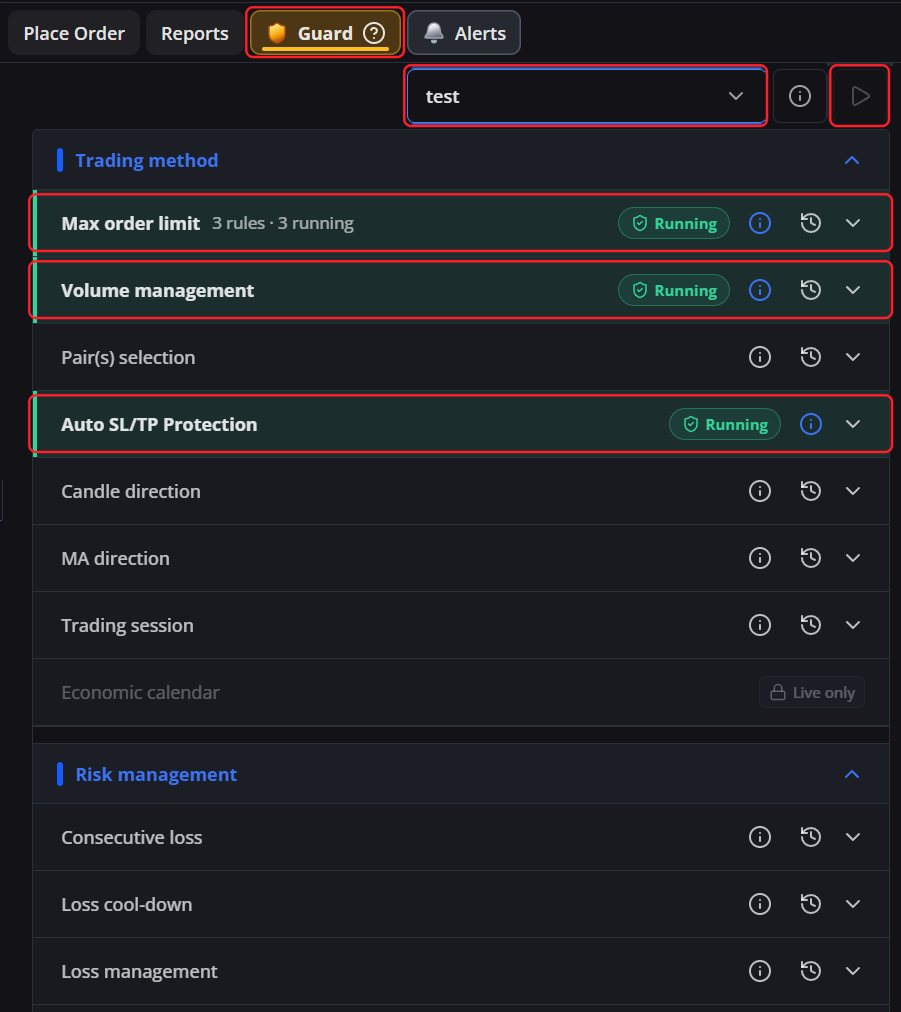
The Guard panel inside Backtest shows the same categories as live trading. A category actually running in the current run carries a Running badge:
- Maximum daily loss and daily equity drawdown: Evaluated from 00:00 UTC on the replay clock. Daily equity peak is tracked across every simulated minute, not just when orders open or close.
- Floating drawdown: Triggers if the unrealized loss on open positions exceeds your limit.
- Account profit and loss limits: Evaluates total realized/floating profit and loss. While the account remains beyond your limit, new orders stay blocked.
- Minimum / Maximum equity: Keeps account equity within your chosen boundary. Leaving a bound at 0 or blank leaves that side unlimited. If equity breaches the limit, new orders are blocked and open positions are closed.
- Blocked trading session: Restricts placing orders during designated hours (e.g., 22:00 to 23:00 UTC).
- Consecutive losing trades: Triggers after your specified number of consecutive losses.
- Candle direction: Gates the BUY/SELL buttons based on candle trend. If the reference candle changes direction, pending orders facing the wrong direction are automatically cancelled.
- Moving-average distance: Prevents entering trades too far from the moving average.
- Auto SL/TP protection: Enforces mandatory stop-loss and take-profit timing (see Placing orders in Backtest).
- Max order limit: Maximum daily orders, maximum orders in the same pair and maximum orders at the same time. The daily count follows the simulated day, and only the run's own trades are counted.
- Volume management and Pair(s) selection: Minimum and maximum lot sizes, and the instruments you allow yourself to trade.
Not enforced: The Economic calendar rule is not simulated in Backtest. Its row is dimmed and carries a Live only badge, and your saved configuration stays safe and active for live trading.

The blocked trading session rule is checked when you place an order. A pending order placed before the window can still be filled by price while the window is open. Keep that in mind when you use the rule to rehearse a "no trading during news hour" routine.
When a rule is violated
The Guard tab blinks orange, the offending category is outlined, and the violation is written to the run's history. What happens to your trades depends on the action configured on the rule:
- Lock account : trading is locked for the configured duration, counted on the replay clock. The lock blocks modifying as well as placing: closing a position, cancelling a pending order, the Update button in the tables and the ✓ on the chart's SL/TP bar are all refused while it lasts. You can still drag lines on the chart - a draft is harmless - but you cannot commit it. When the lock expires, everything unlocks.
- Close order : Close all positions closes every open position and cancels every pending order. For account profit/loss rules configured with Close this position, only the position that broke the rule is closed.
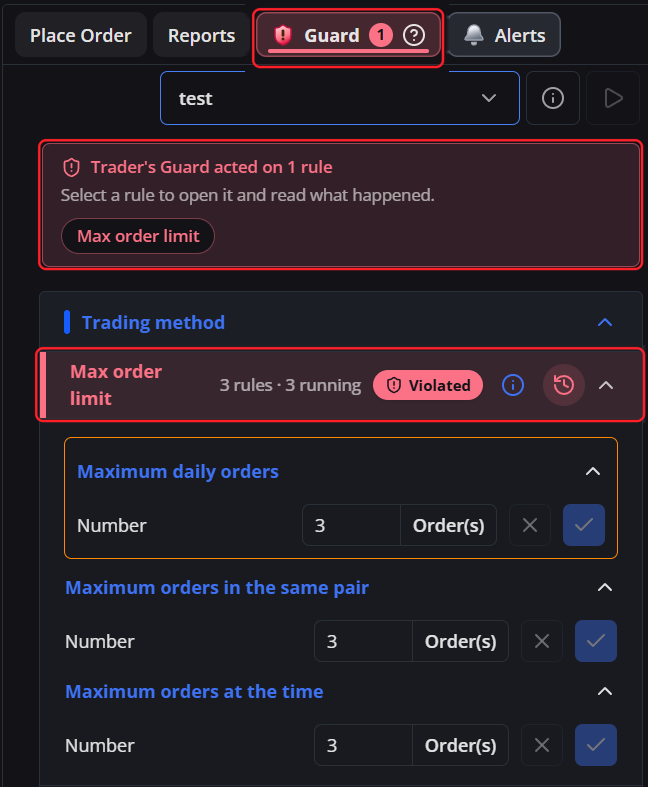
The violation history of a run
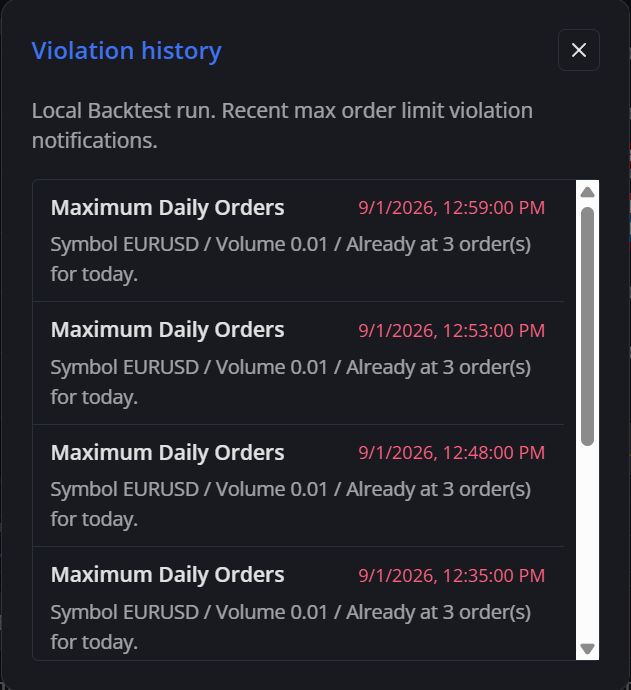
- The history belongs to the run and is stored in your browser: 10 events per page, no server request, no loading spinner.
- Timestamps are the simulated candle times, shown in UTC.
- Opening a category's history marks that category as read; the others keep blinking until you look at them.
- Live violations never appear in a Backtest run, and Backtest violations never reach your live history.
- Choosing a new start point clears the history. Save Backtest state keeps it, so a restored session still shows the warnings it collected.
Scenarios inside Backtest
The Scenario list in Backtest is a sandbox copy. Creating, editing, running or deleting a Scenario there never touches your live account.
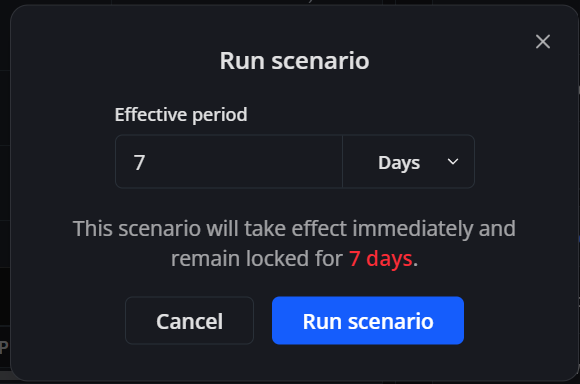
The dialog wording is the same as live - "remain locked for 7 days" - but in Backtest those are simulated days, counted on the replay clock.
- Answering Yes to the carry-over question copies your live Scenarios in; answering No starts the list empty.
- Run opens a commitment of 7 to 90 days just like live - but measured on the replay clock. A 7-day commitment can therefore expire after a few minutes of real time, which is exactly the point: you get to see the whole commitment play out.
- While a commitment is running the Run button is disabled and dimmed. When the simulated deadline passes, the button lights up again and the Scenario commitment ended banner appears.
- You may press Run before choosing a start point. The commitment then waits, and starts counting from the first simulated minute of the run.
- Running an already-expired Scenario again is a restart, not a fresh activation - the toast says Scenario restarted. A restart also clears the "already warned about this rule" memory, so a breach that is still standing (a floating drawdown that never recovered) warns you again instead of staying silent.
- Saved is not the same as enforced. Outside a commitment, saving new rules or new settings waits for your next Run ("Select Run to activate its rules"), while rules you delete or switch off stop immediately ("Removed rules have been stopped"). Each rule carries a Running or Ready to run badge so you can see which half you are looking at.
- Choosing a new start point ends any commitment, because the deadline belonged to the timeline you just left. The Scenario itself is kept.
Your live account status stays outside
A trading lock on your live account - from a live Guard penalty or a daily drawdown lock - does not block orders in Backtest. The simulation trades a demo account, and the lock that matters inside a run is the one the run's own rules produced.
The Today's drawdown figure in Reports is likewise the demo account's number during a Backtest run; only the threshold it is compared against comes from your live configuration.