Placing Orders in Backtest
You place orders in Backtest using the exact same order panel you use for live trading. Every order type is supported, and all trades are matched against historical replayed prices.
Orders placed in Backtest exist solely in your local browser runtime. They are not sent to the broker server, do not appear in your real trading history, and have zero impact on your real live balance.
Order types and execution
The order panel operates just as it does in live trading. Select your order type, specify your lot volume, and review calculated margin requirements before confirming:
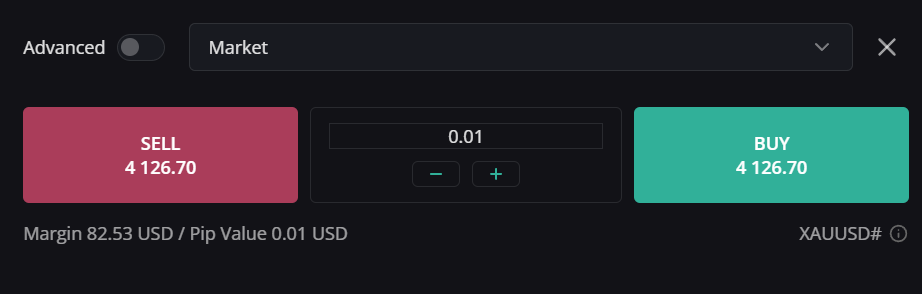
- BUY / SELL Market : opens a position immediately at the current simulated candle price.
- BUY / SELL Limit : waits for the replayed price to pull back to your favorable entry price.
- BUY / SELL Stop : waits for the replayed price to break through your entry level before opening.
- BUY / SELL Stop Limit : a two-stage conditional order. When the market touches the Stop Price, the order is converted into a standard Limit order at your specified Limit Price.
Note: In online Backtest mode, Bid and Ask prices are equal (Spread = 0), ensuring orders fill directly at the historical candle price without artificial spread markup or slippage.
How price moves inside one minute
Each 1-minute candle is evaluated through a deterministic 3-point price path to ensure 100% repeatable trading results:
- Rising or flat candles (Close ≥ Open): evaluated as Low → High → Close.
- Falling candles (Close < Open): evaluated as High → Low → Close.
Whether you use Play, Step, or End, prices always follow this exact deterministic path, ensuring identical trading outcomes across repeated runs.
Stop Loss and Take Profit on the chart
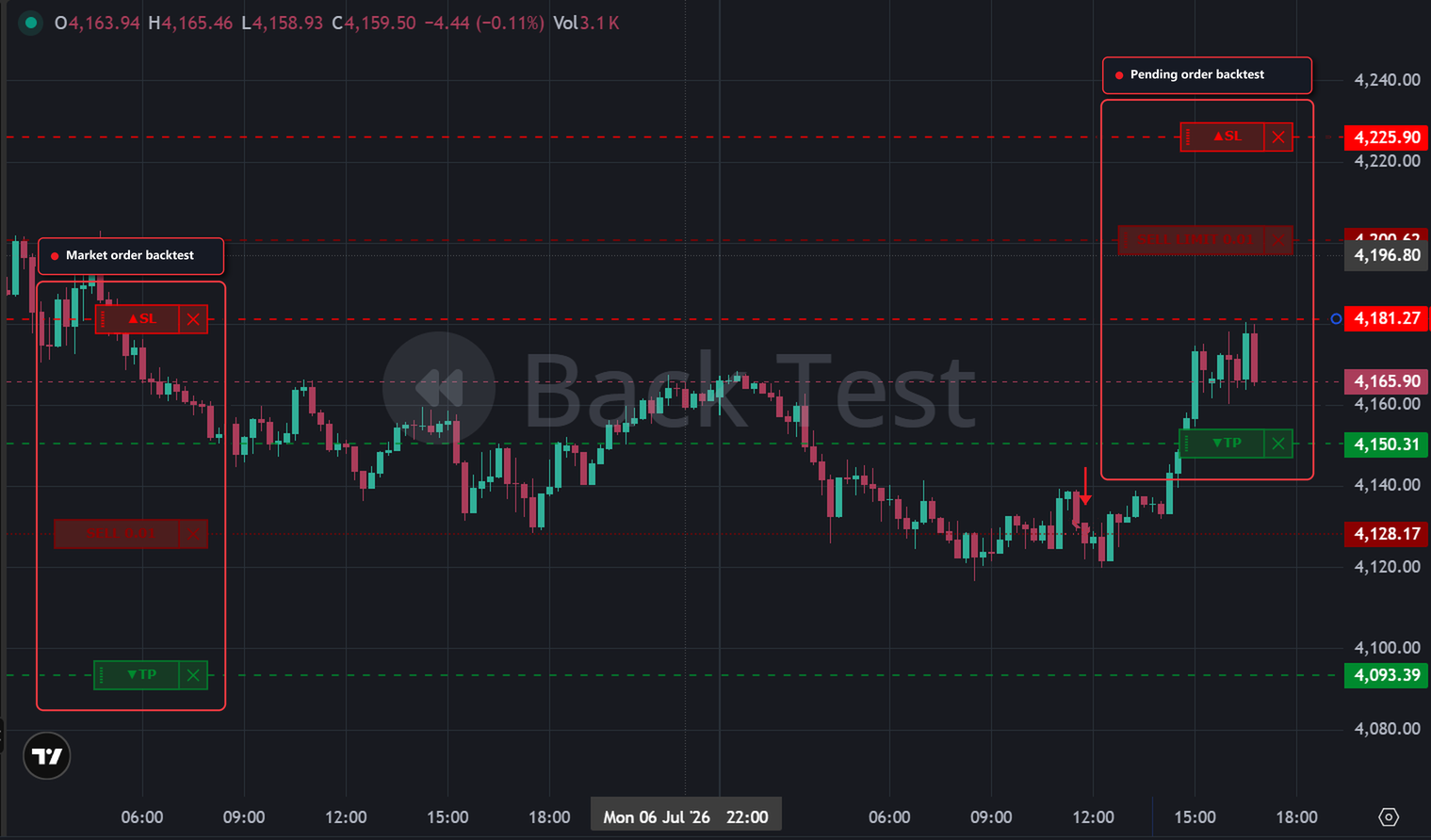
You can set Stop Loss (SL) and Take Profit (TP) directly in the order form before placing an order, or adjust them visually on the chart by dragging their interactive order lines.
- Open positions and pending orders display Entry, SL, and TP lines on the chart.
- When SL or TP is not yet set, it appears as a dashed placeholder line located 45px away from entry, giving you a convenient handle to click and drag to your desired price.
- If you drag a stop line to an invalid price level, it automatically snaps back to its previous position.
The Stop Limit lines
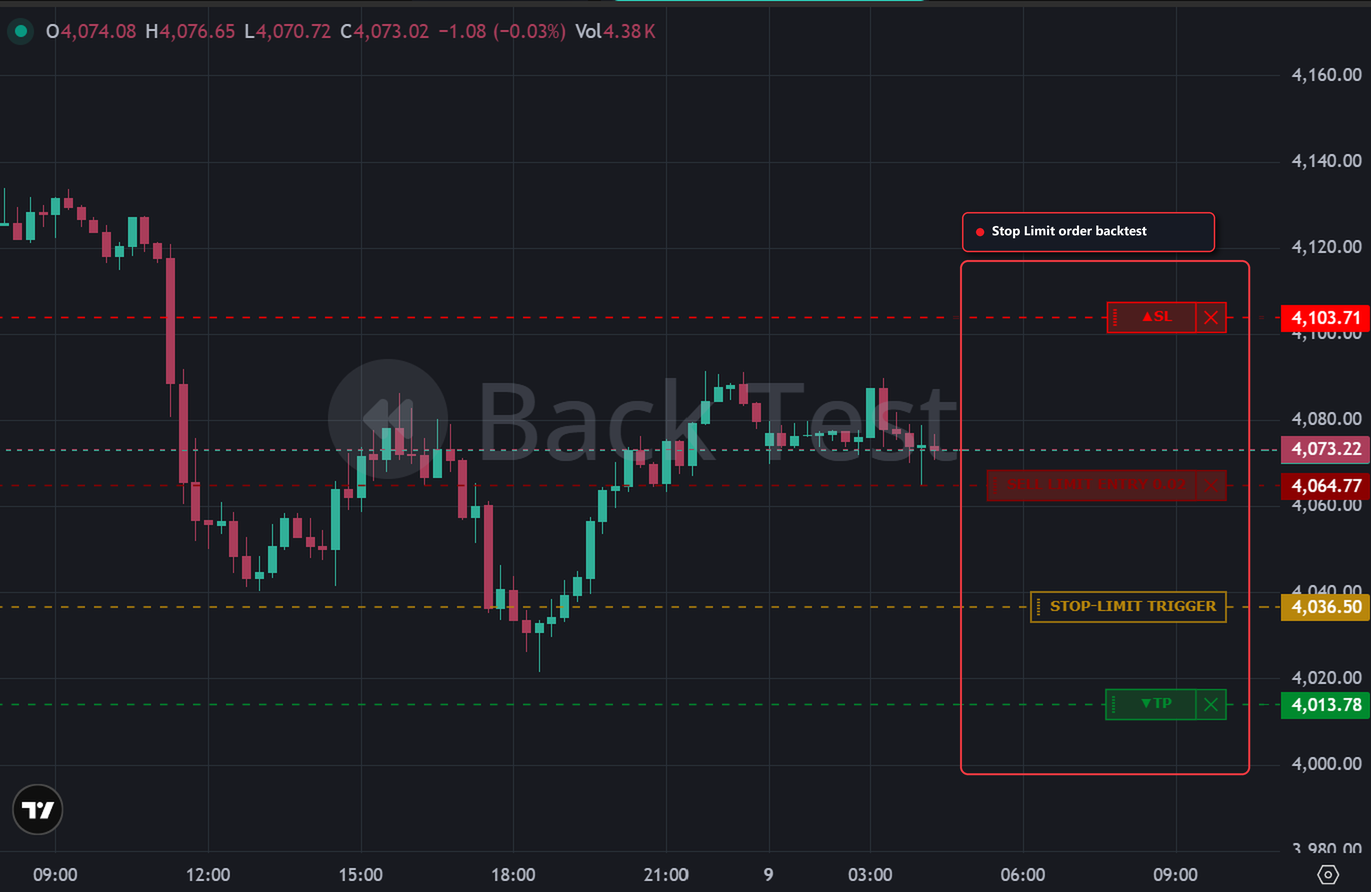
A pending Stop Limit order displays two distinct lines simultaneously on the chart:
1. STOP-LIMIT TRIGGER (dashed amber line): Marks the Stop Price where the order activates.
2. BUY/SELL LIMIT ENTRY (solid green/red line): Marks the Limit Price where the trade will be filled.
You can drag either line independently on the chart. When the market reaches the Stop Price, the trigger line disappears, and the order converts into a standard Limit order waiting at the Limit Price.
Interactive controls on order lines
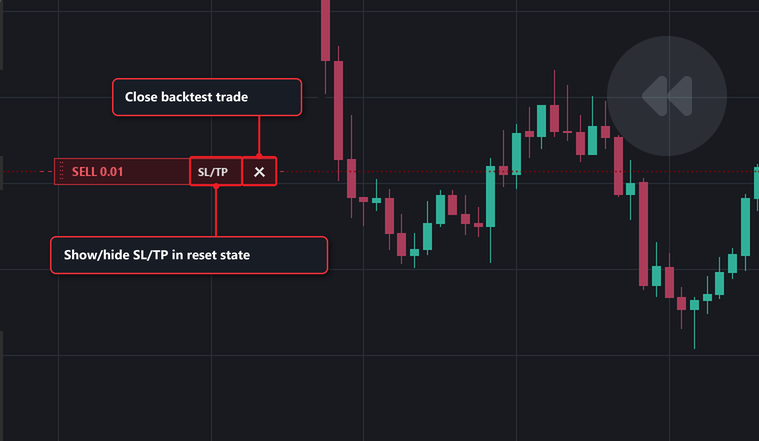
Each order line label features built-in action buttons:
- Middle segment: Shows or hides the placeholder SL and TP lines when they are in their unconfigured reset state. It displays
SL,TP,SL/TP, orBackdepending on what is hidden. - ✕ on an Entry line: Acts on the entire order — closes an open position at the current replay price, or cancels a pending order.
- ✕ on an SL or TP line: Resets only that specific stop level back to its unconfigured placeholder state without affecting the open position.
Auto SL/TP Protection
The order form includes Auto SL/TP Protection in its Advanced section. When enabled, if a position is opened without an SL or TP, the system automatically calculates and applies the missing levels from Default SL/TP 5 simulated minutes after opening.
Inside Backtest, this countdown is measured in simulated replay minutes:
- The countdown pauses whenever the replay is paused.
- Play, Step, and End all advance the countdown.
- Any stop level you configure manually before the timer expires is preserved untouched.
Closing positions
Positions can be closed in full or closed partially from the Open Positions table. Margin requirements and realized profit/loss are automatically recalculated in proportion to the closed volume, and the trade is logged immediately to the History tab.
Common order notifications
- Insufficient demo funds : Available free margin in the demo account is insufficient for the requested volume. Reduce lot size or adjust your demo balance before starting a run.
- Margin unavailable : Symbol specifications could not be loaded.
- Trader's Guard warning : A rule enabled from Trader's Guard has restricted the order. Guard validation is checked before margin checks to ensure transparent feedback.